Una firma de correo cuidada transmite profesionalidad al instante, pero solo si se construye sobre la base correcta: el tamaño.
Esta guía explica los estándares de tamaño de imagen para firmas de correo que realmente funcionan y te ayuda a elegir el mejor tamaño para la imagen de tu firma, de modo que tu diseño se vea limpio, cargue rápido y sea uniforme en todos los dispositivos y clientes de correo.
Índice
- Por qué importa el tamaño de la firma de correo
- Las mejores medidas para una firma de correo
- Peso y resolución óptimos de las imágenes
- Tamaño de firma de correo recomendado para clientes de escritorio
- Más guías sobre firmas de correo
Por qué importa el tamaño de la firma de correo
Acertar con el tamaño de la firma de correo es uno de esos detalles de diseño sutiles que definen al instante tu imagen profesional. Además de verse ordenada, una firma de correo con el tamaño ideal mantiene un diseño uniforme, carga rápido y refuerza la credibilidad de tu marca en cualquier bandeja de entrada.
Tanto si creas firmas de correo para un equipo como si perfeccionas la tuya, las medidas determinan directamente cómo se ve tu firma en pantallas de ordenador, móvil y tablet.
Las firmas demasiado grandes saturan los mensajes y ralentizan el envío, mientras que las demasiado pequeñas hacen ilegible la información de contacto, desenfocan el logo de la empresa y encogen los iconos de redes sociales hasta hacerlos irreconocibles. Encontrar el equilibrio adecuado convierte un simple pie de mensaje en una firma de correo realmente profesional.
Estas son las razones por las que acertar con el tamaño de la imagen de tu firma importa más de lo que crees:
- Mantiene una imagen de marca cuidada: Unas medidas correctas garantizan que el logo, el banner y los datos de contacto se vean equilibrados en cualquier pantalla y conserven una identidad visual sólida.
- Centra la atención donde debe estar: Las proporciones adecuadas destacan los datos de contacto esenciales, y no logos enormes ni banners publicitarios recargados, para que tu mensaje sea claro y limpio.
- Mejora la legibilidad: Con el tamaño de imagen ideal, tus datos de contacto se ven nítidos y legibles sin que los destinatarios tengan que hacer zoom o desplazarse.
- Evita retrasos en la carga: Los archivos de imagen demasiado pesados hacen que los correos tarden en cargar. Una firma bien optimizada, con imágenes ligeras y comprimidas, carga rápido y se muestra correctamente.
Funciona en todas las plataformas: los clientes de correo como Gmail, Outlook y Apple Mail interpretan el HTML de forma distinta. Elegir el tamaño de imagen correcto para tu firma de correo evita recortes, desplazamientos o pixelado en los distintos dispositivos.
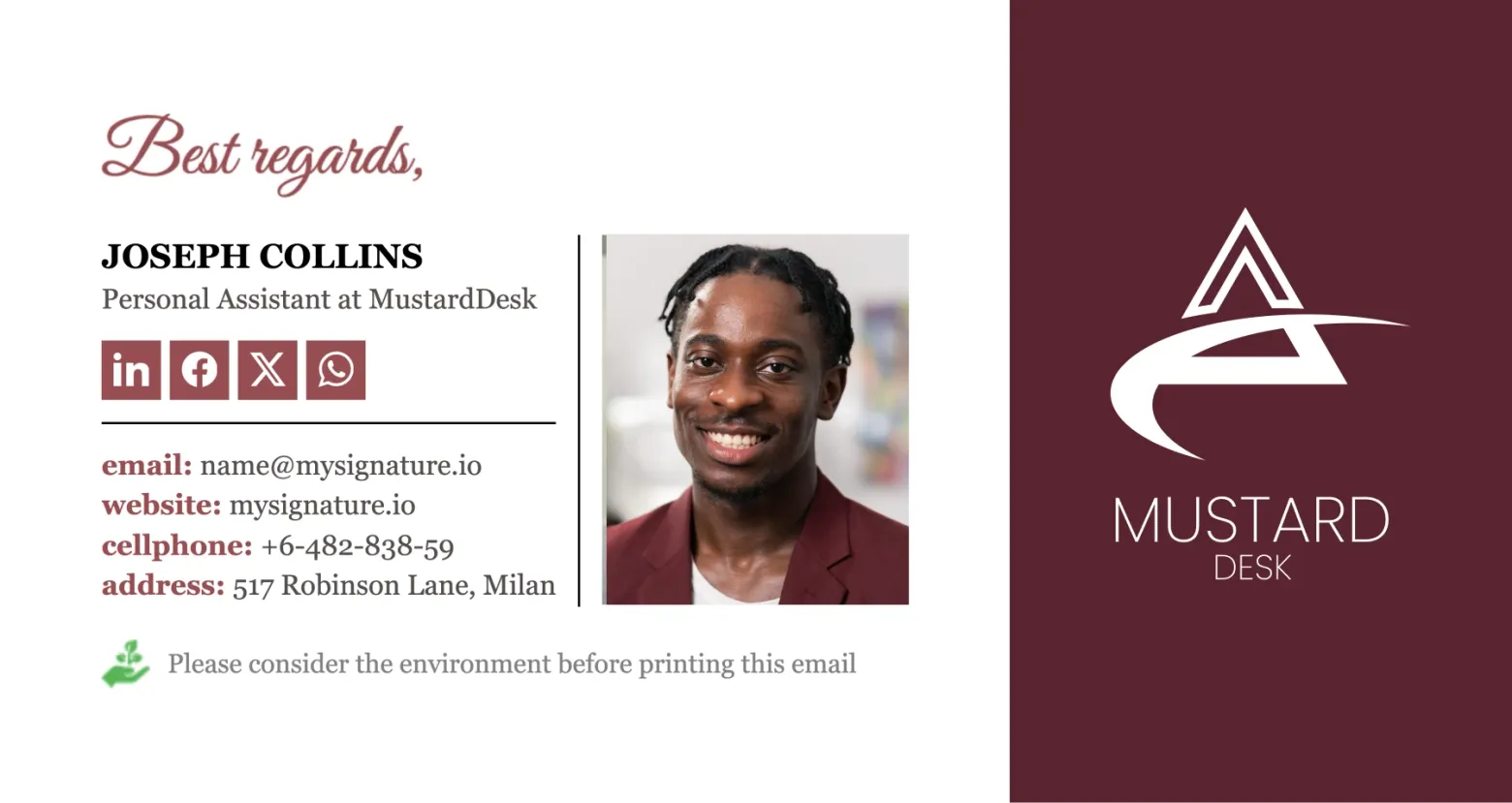
¡Haz que tu firma de correo se vea perfecta en cualquier dispositivo!
Crea firmas de correo profesionales y con la imagen de tu marca en minutos con MySignature. Elige una plantilla de firma, añade el logo de tu empresa y tus datos de contacto, y listo.
Crear una firma de correoLas mejores medidas para una firma de correo
El tamaño de la firma de correo influye directamente en su impacto visual y en la experiencia general del usuario. Con el tamaño adecuado, tu diseño se mantiene equilibrado y legible en cualquier pantalla, y cada elemento (logo, texto e iconos) tiene espacio suficiente.
Esta es una referencia rápida de los mejores tamaños de firma de correo según el tipo de diseño:
Firma de correo pequeña: de 300 a 400 píxeles de ancho y de 90 a 150 píxeles de alto.
Limpio y eficaz, este formato es ideal para diseños sencillos que destacan los datos de contacto clave. Funciona muy bien en firmas compactas, donde lo más importante es la legibilidad y una lectura rápida.
Firma de correo mediana: de 450 a 600 píxeles de ancho y de 150 a 200 píxeles de alto.
La opción más versátil para uso profesional. Permite incluir de forma ordenada el logo de la empresa, las imágenes de la firma y los iconos de redes sociales, con tiempos de carga cortos y una buena adaptación a dispositivos móviles.
Firma de correo grande: de 600 a 650 píxeles de ancho y de 200 a 250 píxeles de alto.
Ideal para añadir una imagen de banner u otro elemento visual de marca sin perder la estructura. Potencia el marketing a través de la firma de correo y mantiene unas proporciones limpias y un tamaño de letra legible.
Mantén el ancho de tu firma de correo por debajo de 650 píxeles para que tu correo se vea correctamente en todos los dispositivos.
Peso y resolución óptimos de las imágenes
Acertar con el tamaño de la imagen de la firma de correo es solo la mitad del trabajo. El peso de las imágenes, su resolución e incluso el formato de archivo que elijas influyen en lo rápido que carga tu correo, en cómo se muestra en los distintos clientes de correo y en lo bien que se adapta al diseño responsive. En conjunto, estos factores determinan si tus destinatarios verán una firma profesional y elegante o un diseño roto.
Veamos los aspectos clave que definen el rendimiento, la nitidez y la compatibilidad de las imágenes de tu firma de correo.
¿Cuál es el peso máximo de las imágenes en una firma de correo?
Los archivos de imagen grandes pueden ralentizar el envío, activar los filtros de spam o aparecer como archivos adjuntos en lugar de imágenes integradas. Cuando las imágenes pesan demasiado, aumentan el tamaño de la firma de correo, retrasan la carga y empeoran la experiencia general.
Para mantener un buen rendimiento, usa en tu firma imágenes comprimidas que conserven la calidad y pesen lo menos posible. Lo recomendable es mantenerse por debajo de 50 KB por imagen, sobre todo en logos y banners. El peso total de los banners de la firma de correo no debería superar los 100 KB para que cargue de forma uniforme en todos los proveedores de correo.
Siempre que puedas, comprime las imágenes antes de subirlas. Herramientas como TinyPNG o Squoosh te ayudan a hacerlo sin perder nitidez.
DPI recomendados para pantallas estándar y de alta resolución
Los DPI (dots per inch, o puntos por pulgada) definen la nitidez de una imagen. Es lo que distingue una imagen PNG nítida de otra que se ve ligeramente borrosa en una pantalla Retina.
Para monitores estándar, 72 DPI es lo habitual. Es el mejor equilibrio entre nitidez de la imagen y velocidad de carga.
Para pantallas de alta resolución o Retina, duplica ese valor hasta 144 DPI. Así, la imagen integrada se mantiene nítida en las pantallas más modernas sin aumentar demasiado el tamaño del archivo.
Consejo: Asegúrate de que las dimensiones en píxeles no superen los límites de tu firma: duplicar los DPI no significa duplicar el ancho ni el alto.
Cómo evitar que las imágenes se deformen o se pixelen
Un logo estirado o un banner pixelado perjudican al instante tu imagen profesional. Un mal escalado también puede descolocar el diseño en distintos dispositivos.
Para que tus imágenes se vean limpias y proporcionadas, sigue estas buenas prácticas:
- Sube las imágenes al tamaño exacto en que se mostrarán. Si tu logo se muestra a 200×100 píxeles, expórtalo con ese mismo tamaño.
- Usa relaciones de aspecto uniformes. Así tus imágenes se ven homogéneas y no se estiran de forma desigual cuando se abren en distintos clientes de correo.
- No copies imágenes directamente en el editor de correo. Súbelas siempre a través de tu generador de firmas de correo o con código HTML para conservar la calidad.
- Elige formatos vectoriales o formatos de mapa de bits de alta calidad. Una imagen bien preparada conserva la transparencia y la nitidez sin inflar el tamaño del archivo.
No olvides probarla en ordenador y en móvil: las pantallas pequeñas dejan ver los fallos, y revisarla te ayuda a que tu firma se vea cuidada y fiable.
Los mejores tamaños de imagen para firmas de correo en móviles
Hoy en día, más de la mitad de los correos se abren en el móvil. Algunos estudios calculan que hasta el 70-75 % de los usuarios consulta su bandeja de entrada principalmente en el teléfono. ¡Solo por eso, optimizar para móviles es imprescindible!
Para un diseño responsive óptimo, utiliza imágenes de entre 300 y 400 píxeles de ancho. Los banners deben medir menos de 100 píxeles de alto para que quepan sin problema en pantallas estrechas. La firma de correo en su conjunto debe ser compacta para que el diseño no le quite protagonismo al mensaje.
Reducir los iconos de redes sociales a unos 22×22 píxeles también ayuda a mantener la claridad sin recargar la firma.
Consejo: Prueba tu diseño en orientación vertical y horizontal para asegurarte de que tu correo se vea equilibrado en cualquier dispositivo.
Formatos compatibles: PNG, JPG, GIF, SVG
Otro aspecto a tener en cuenta es el tipo de archivo de las imágenes. Cada formato se muestra de manera diferente según el proveedor de correo. Quédate con estas opciones fiables:
- PNG: El mejor para logos y banners de firma de correo; admite transparencia, mantiene los bordes nítidos y funciona bien en modo oscuro.
- JPG: Ideal para fotos o degradados; es ligero, pero pierde calidad cada vez que se vuelve a guardar.
- GIF: Adecuado para animaciones sutiles (no superes los 45 KB y limita el número de fotogramas para que cargue rápido).
- SVG: Se adapta sin perder calidad a cualquier tamaño de pantalla, pero evítalo en Outlook, ya que su compatibilidad es limitada.
Y hablando de clientes de correo…
Qué formatos funcionan mejor en Outlook, Gmail, Apple Mail y otros clientes
Cada cliente de correo trata las imágenes de forma distinta, así que un formato que se ve perfecto en Apple Mail puede fallar en Outlook.
Para mantener la uniformidad en todas las plataformas:
- Firma de Outlook: Prefiere PNG por su nitidez y transparencia. Evita los SVG.
- Firma de Gmail: Funciona mejor con PNG o JPG y un tamaño total del correo inferior a 25 MB. Enlaza las imágenes alojadas en línea en lugar de integrarlas para evitar que aparezcan como archivos adjuntos.
- Firma de Apple Mail: Admite bien la mayoría de los formatos, incluidos los GIF, pero limita los bucles de animación para no distraer.
- Yahoo y otros clientes: Usa JPG o PNG y comprueba siempre que no haya cambios de color ni diferencias de visualización.
Consejos para ajustar el tamaño del logo en Gmail y Outlook
En Gmail y Outlook, ajustar bien el tamaño del logo es clave para lograr un aspecto limpio y uniforme.
En Gmail, mantén los logos por debajo de 200×100 píxeles (el tamaño ideal para firmas de correo) y prueba los ajustes predefinidos pequeño, mediano y grande para comprobar la nitidez. Comprime la imagen antes de subirla y usa enlaces a imágenes alojadas en lugar de arrastrar archivos al editor.
En Outlook y otras firmas de correo HTML, conserva la resolución original: cambiar el tamaño en el editor puede desenfocar o deformar la imagen. Lo mejor es usar una imagen PNG comprimida.
Tamaño de firma de correo recomendado para clientes de escritorio
Aunque la optimización para móviles acapara la atención, el diseño en escritorio sigue siendo importante. Muchos profesionales y suscriptores leen y responden sus correos desde pantallas grandes.
Los clientes de correo de escritorio muestran las firmas de otra manera: ofrecen más espacio horizontal, pero también dejan ver fallos como banners demasiado grandes o texto mal alineado.
Para obtener los mejores resultados, las firmas en escritorio deben medir unos 600-650 píxeles de ancho y 150-200 píxeles de alto. Este rango permite una tipografía legible, logos nítidos y el tamaño de banner ideal sin saturar el mensaje.
La firma puede ser algo más alta si incluye un aviso legal o una franja promocional, pero unas proporciones equilibradas hacen que siga viéndose cuidada.
Consejo: En equipos, un software de gestión de firmas de correo ayuda a mantener estas medidas de forma uniforme, para que la firma de cada empleado se vea alineada y profesional en el escritorio.
Prueba Mysignature
MySignature es una herramienta todo en uno para crear firmas de email con marca y bien diseñadas.
Más guías sobre firmas de correo
Para ver más guías detalladas y consejos para resolver problemas, consulta nuestros recursos adicionales:
- Cómo crear una firma de correo HTML para impulsar tu marca personal
- Iconos de redes sociales para firmas de correo
- Cómo crear un diseño de firma de correo eficaz: consejos y ejemplos
- Cómo encontrar la mejor fuente para tu firma de correo: la guía definitiva
- Cómo usar pronombres en la firma de correo
- Cómo añadir un número de teléfono a tu firma de correo
- ¿Cómo crear un banner para firmas de correo?
- ¿Por qué las imágenes se ven grandes al responder o reenviar un mensaje?
- ¿Cómo evitar que las imágenes de la firma de correo cambien de tamaño?
- Cómo añadir una cita a tu firma de correo
- Cómo añadir una imagen a la firma de Yahoo Mail
- Cómo añadir y cambiar la firma de correo en Yahoo Mail
- Cómo incluir un número de teléfono en tu firma de correo
- Icono de Instagram para la firma de correo: guía rápida