Contenido de la guía:
- ¿Por qué añadir el icono de Instagram a tu firma de correo?
- Cómo añadir Instagram a la firma de Gmail
- Cómo añadir Instagram a la firma de Outlook
- Cómo añadir Instagram a la firma de Apple Mail
- Buenas prácticas para añadir el logo de Instagram a tu firma
- Crea una firma de correo con Instagram en MySignature
En nuestro estudio sobre firmas de correo, descubrimos que Instagram es la red social más popular en las firmas de correo: el 69,3 % de los encuestados la había añadido a su firma.
¿Quieres hacer lo mismo pero no sabes cómo? Esta guía rápida te lleva paso a paso. Al terminar, sabrás exactamente cómo añadir Instagram y otras redes sociales al pie de tus correos, usar correctamente los logos de redes sociales y aumentar el reconocimiento de tu marca.
¿Por qué añadir el icono de Instagram a tu firma de correo?
Una firma de correo ya no es solo un nombre y un cargo. Es un espacio donde tus destinatarios pueden conectar contigo rápidamente en redes sociales. Añadir el logo de Instagram le da a tu firma un aspecto más profesional y refuerza la identidad de tu marca.

Toque profesional
Tener Instagram en el pie de tus correos demuestra que interactúas de forma activa con tu comunidad. Tu firma se ve más cuidada y transmite que tu comunicación va más allá del texto plano.
Marca personal
Para un profesional independiente, un logo de Instagram en el que se puede hacer clic es más que un enlace: es un escaparate. Un fotógrafo, por ejemplo, puede usarlo para dar a sus clientes acceso directo a su portafolio y convertir cada correo en una oportunidad de mostrar su trabajo.
Canal de marketing
Para las empresas, Instagram en la firma es una oportunidad de marketing más. Un reclutador puede mostrar la cultura de la empresa con fotos del equipo, y las marcas pueden atraer tráfico a su perfil y reforzar su employer branding.
En resumen, añadir Instagram a tu firma convierte cada correo en un puente entre tu bandeja de entrada y tu presencia en redes sociales.
Cómo añadir el icono de Instagram a la firma de Gmail
Si Gmail es tu bandeja de entrada principal, así puedes añadir Instagram paso a paso:
- Antes de empezar, guarda el icono de Instagram en formato PNG o JPEG. Cuida el tamaño: intenta que no supere los 40 px de alto para que no le robe protagonismo al resto del pie del correo.
- Inicia sesión en tu cuenta de Gmail.
- Haz clic en el icono del engranaje y abre la Configuración.
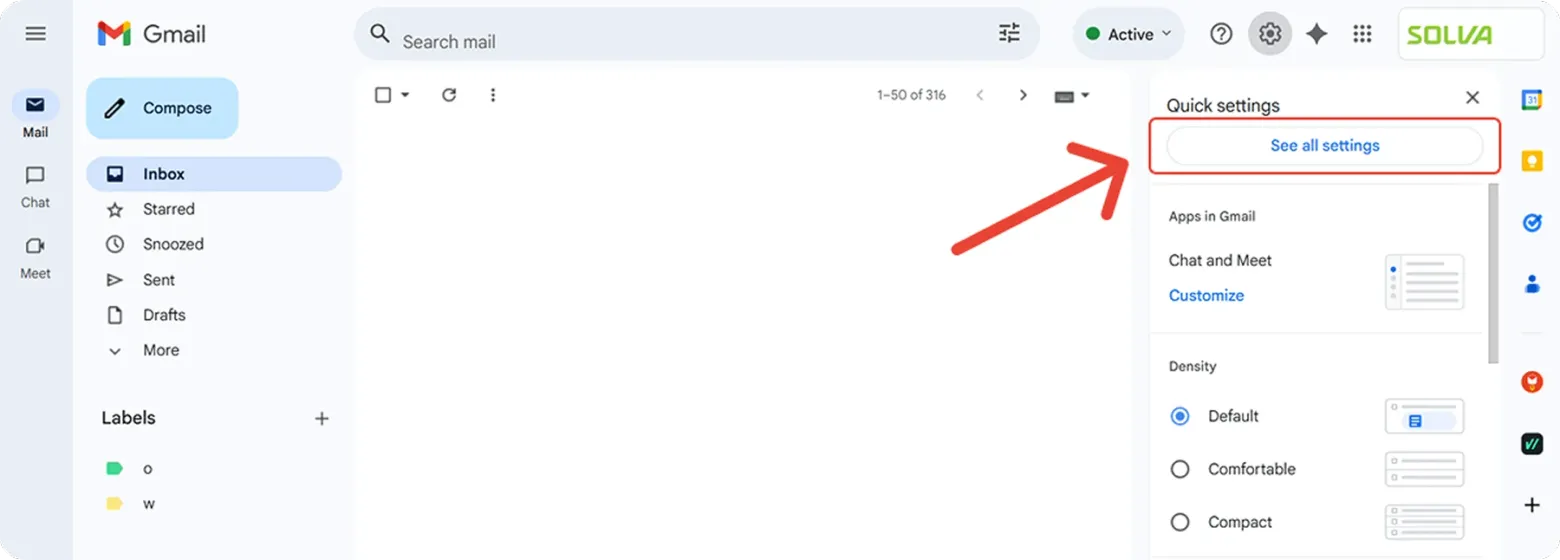
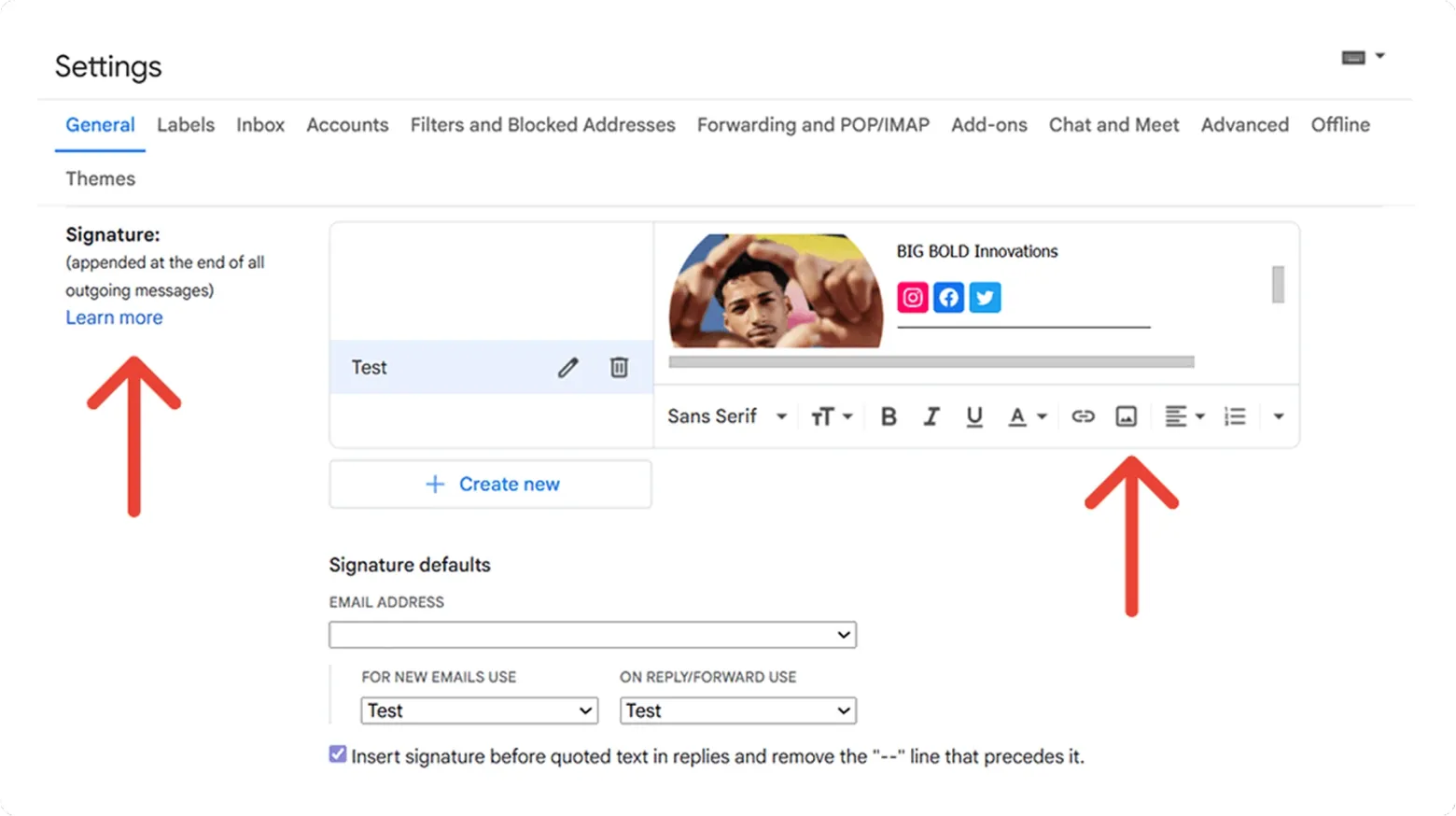
- En la pestaña General, desplázate hacia abajo hasta la sección Firma.
- Si aún no tienes una, haz clic en Crear. Si ya la tienes, simplemente edita tu firma de Gmail actual.
- En la barra de herramientas, haz clic en el icono de imagen y sube el archivo de Instagram que guardaste. Coloca el icono de forma que encaje con el diseño general.
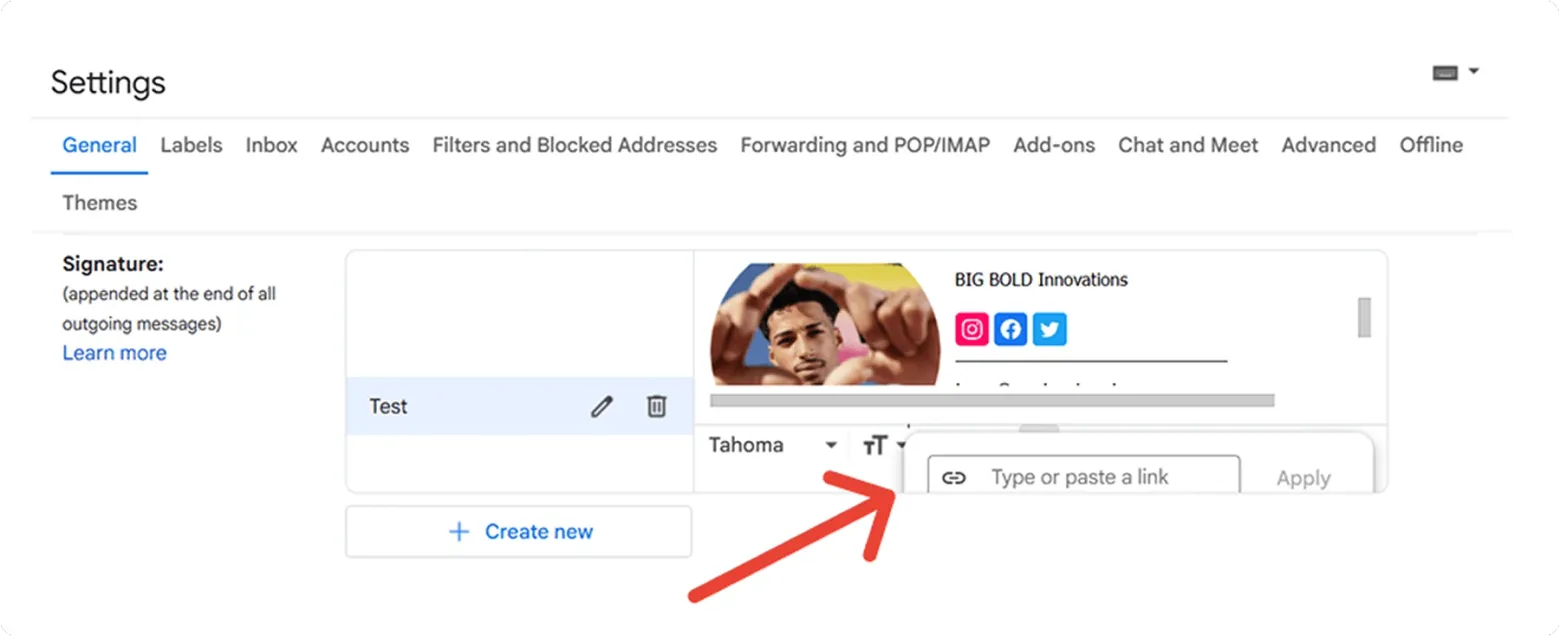
- Selecciona el icono de Instagram.
- Haz clic en el icono de enlace (cadena) de la barra de herramientas, pega la URL de tu perfil de Instagram y haz clic en Aceptar.
- Desplázate hasta el final de la página y haz clic en Guardar cambios.
Listo. La próxima vez que envíes un correo, tu firma de Gmail mostrará Instagram directamente en el pie del mensaje, lista para recibir clics.
Cómo añadir el icono de Instagram a la firma de Outlook
En Outlook también puedes añadir Instagram sin mucho esfuerzo. Este es el proceso:
- Primero descarga tu icono de Instagram, preferiblemente en PNG o JPEG.
- Inicia sesión en la aplicación de Outlook.
- Abre la Configuración (arriba a la derecha).
- Ve a Cuentas → Firmas → editor de firmas.
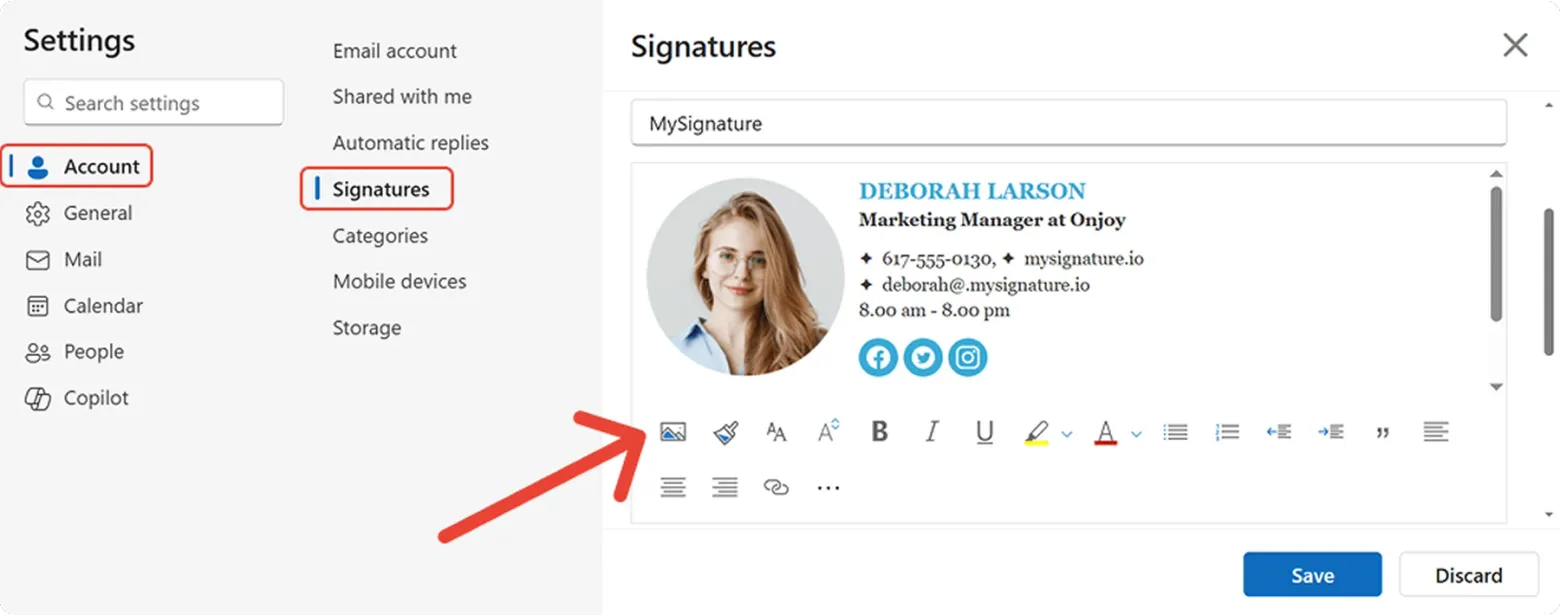
- Escribe tus datos de contacto o pégalos desde un generador de firmas.
- Coloca el cursor donde quieras que aparezca el icono de Instagram.
- Usa el icono de imagen de la barra de herramientas para subir la imagen de Instagram y ajusta su tamaño si es necesario.
- Añade un enlace a tu perfil de Instagram para convertir la imagen en un icono en el que se pueda hacer clic.
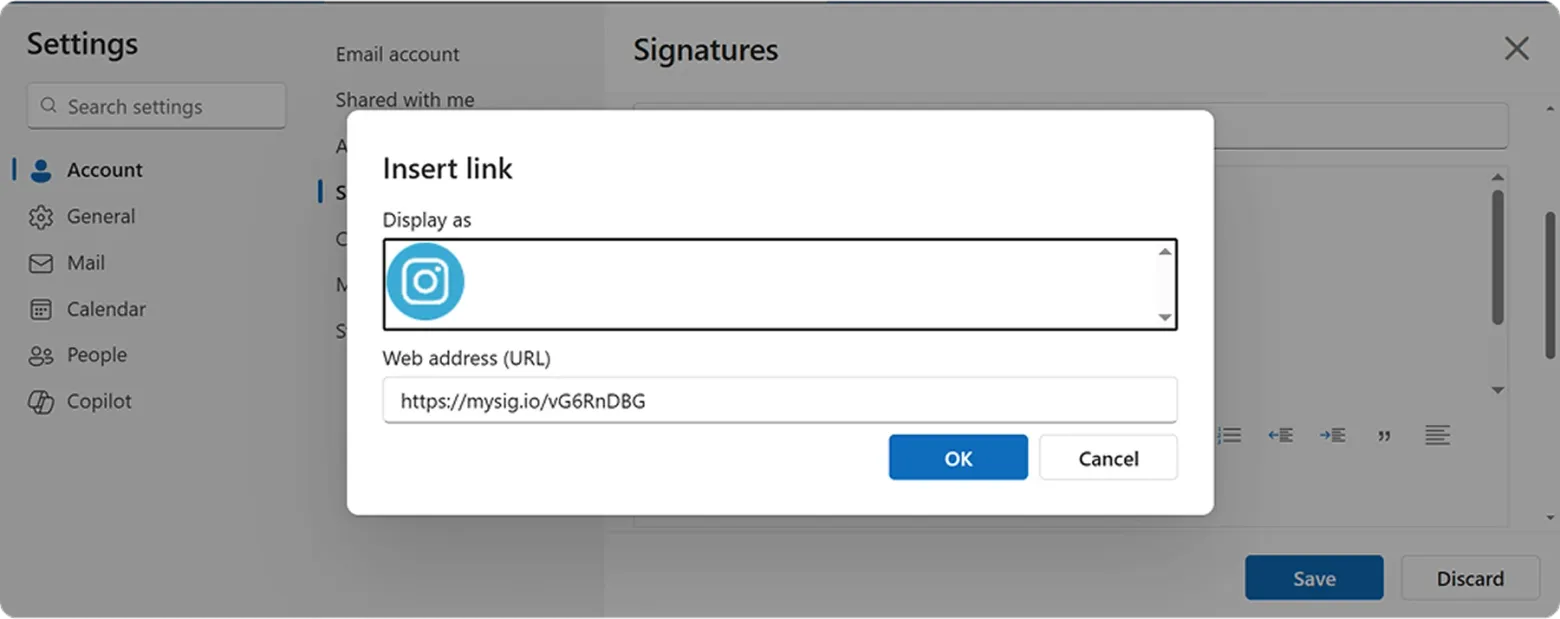
- Haz clic en Guardar.
Con esto, la configuración en el editor de firmas está completa y tus correos de Outlook incluirán un acceso a Instagram que encaja perfectamente con tu imagen de marca.
Cómo añadir el icono de Instagram a la firma de Apple Mail
En Apple Mail el proceso es un poco diferente. Así se hace:
- Abre los Ajustes de Mail.
- Haz clic en la pestaña Firmas.
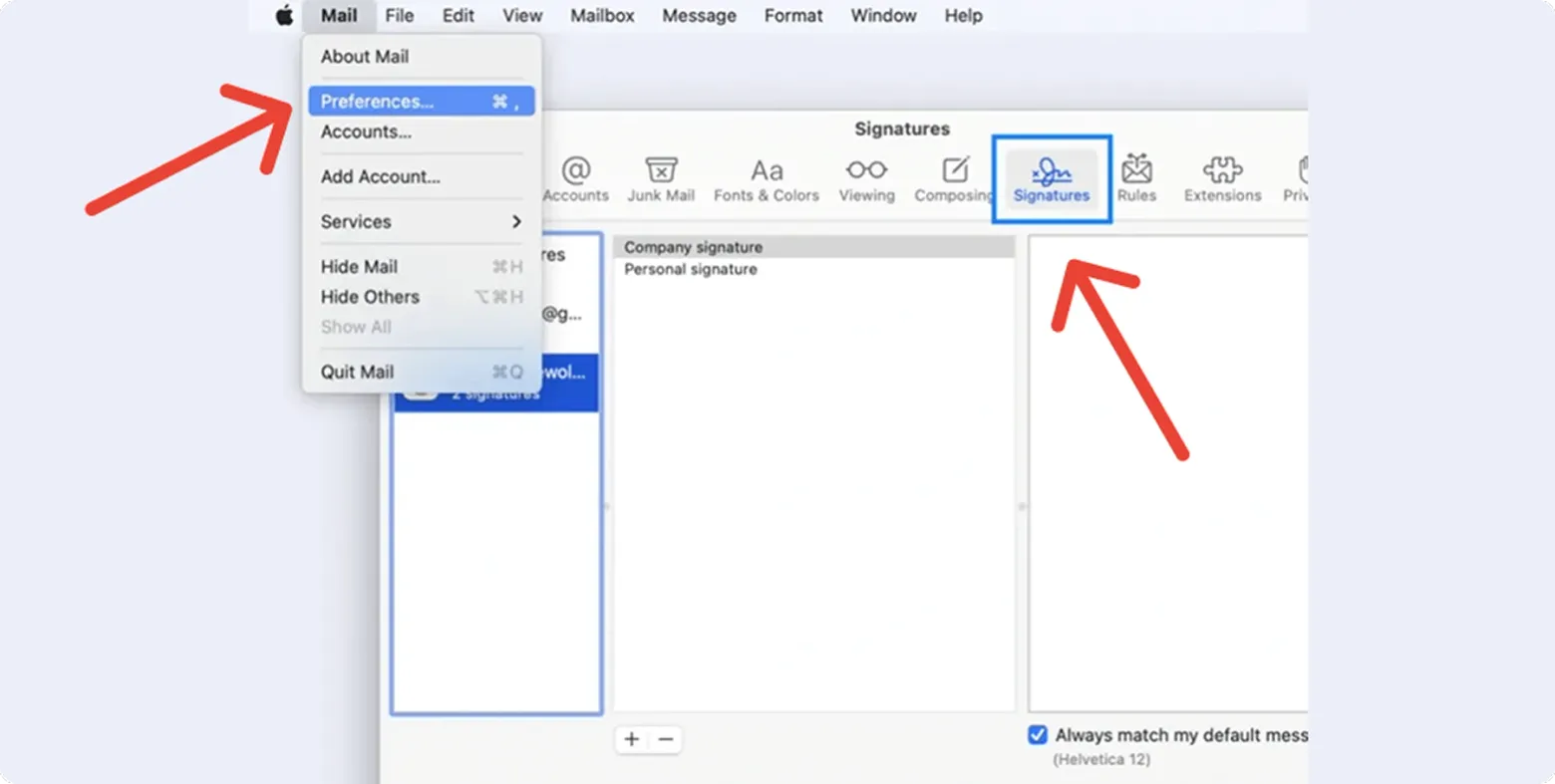
- Selecciona la firma que quieres editar.
- Arrastra el archivo a la zona de edición de la firma. El icono quedará junto a tu texto y a los demás iconos de redes sociales.
- Selecciona el icono y pulsa Comando + K (o usa Edición > Añadir enlace).
- Pega el enlace de Instagram: llevará directamente a tu cuenta de Instagram.
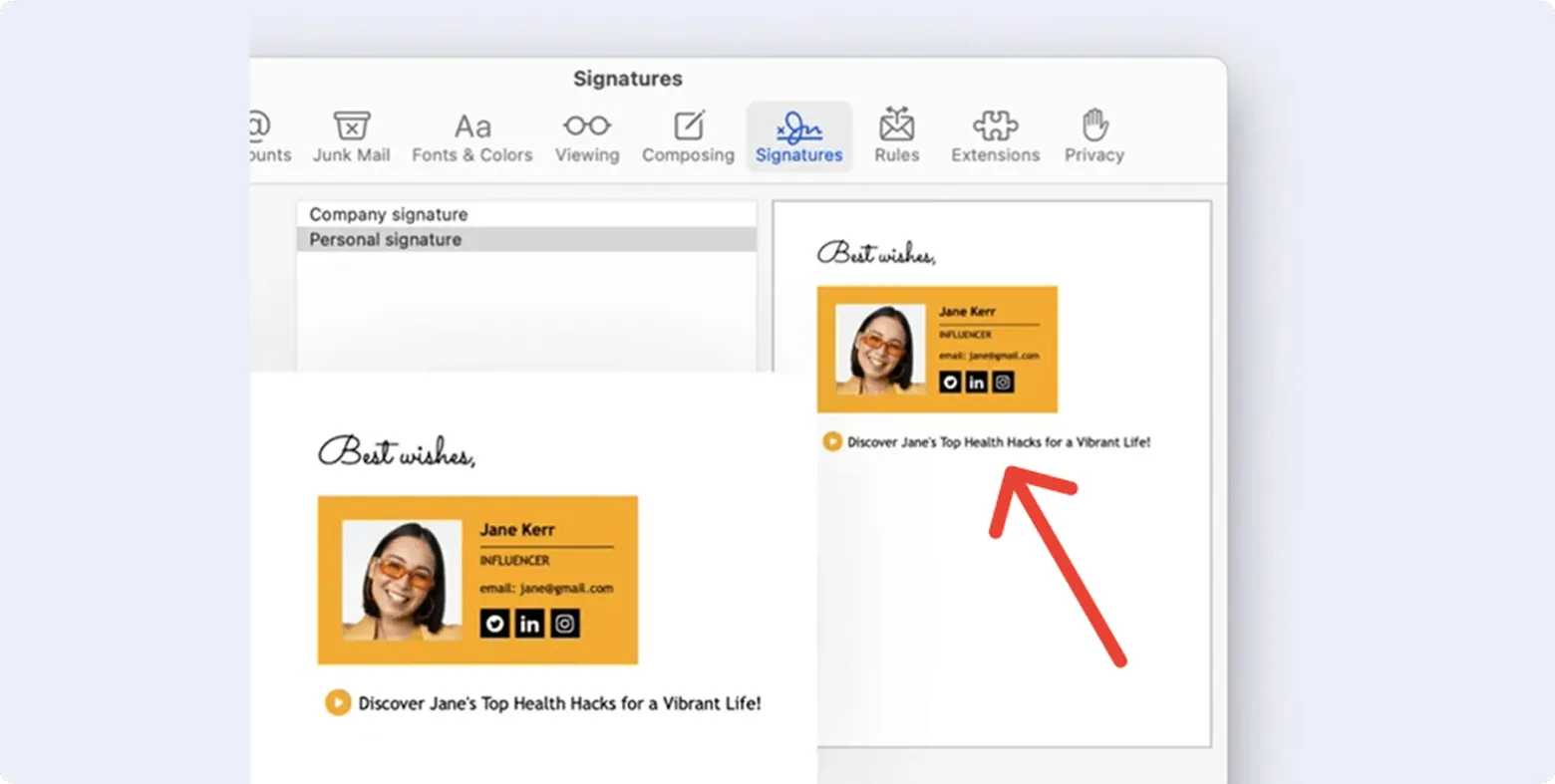
- Haz una prueba: redacta un mensaje nuevo y envíalo a alguien de confianza.
Una vez hecho, tu firma de Apple Mail mostrará Instagram de una forma natural en tu programa de correo, con un aspecto profesional en todos los dispositivos.
Buenas prácticas para añadir el logo de Instagram a tu firma
Añadir Instagram es algo más que insertar una imagen. Para obtener resultados, sigue estas prácticas probadas:
Mantenlo sencillo
Mantén el pie de tus correos limpio y ordenado. Usa solo los iconos de redes sociales imprescindibles y los datos de contacto clave, para que los destinatarios entiendan rápido tu mensaje y accedan fácilmente a tus redes.

Diseño adaptado a móviles
Asegúrate de que el botón de Instagram y los iconos de otras redes sociales se vean bien en todos los dispositivos. Ajusta el tamaño y el espaciado de los iconos para que sigan siendo legibles y fáciles de pulsar en smartphones y tablets.
Añade una llamada a la acción clara
Anima a los destinatarios a interactuar con tus botones de redes sociales. Frases como «Sígueme en Instagram» o «Visita nuestro perfil» hacen que tu firma de correo sea más atractiva y eficaz.

Haz que todos los enlaces se puedan medir
Puedes añadir parámetros UTM a mano a tus enlaces de redes sociales o seguir los clics y la interacción directamente en el panel de analítica de MySignature. Así podrás medir el rendimiento de tu plantilla de firma y ver cómo interactúan los destinatarios con tu botón de Instagram y otros iconos.
Si quieres ir un paso más allá, puedes crear una firma de correo profesional con seguimiento integrado, para saber con más facilidad qué enlaces generan más interacción.
Ten en cuenta a tu público
Adapta tu firma al contexto: no es lo mismo una firma de correo personal que una firma profesional más formal. Asegúrate de que el diseño, los colores de marca y tu imagen profesional se ajusten a lo que espera tu público objetivo.
Bien hecho, Instagram no solo quedará bien en tu firma, sino que también generará una interacción medible.
Crea una firma de correo con Instagram en MySignature
Los pasos manuales funcionan, pero pueden llevar tiempo. Ahí es donde entra la gestión de firmas de correo de MySignature.
Con MySignature no tienes que preocuparte por el código ni el formato. La herramienta se encarga del código HTML que hay detrás del diseño y te da acceso a generadores de firmas de correo profesionales. Puedes crear firmas de correo con Instagram en minutos con plantillas de firma personalizables.
Además, MySignature te permite gestionar las firmas de equipos completos y mantener una imagen de marca coherente. También cuenta los clics que recibe tu enlace de Instagram, para que puedas medir su rendimiento.
Prueba Mysignature
MySignature es una herramienta todo en uno para crear firmas de email con marca y bien diseñadas.
¿Listo para crear tu nueva firma de correo? ¡Empieza hoy con MySignature!
Más guías sobre firmas de correo en Outlook
- Por qué no aparece mi firma en Outlook
- Cómo cambiar la firma en Outlook
- ¿Por qué la firma tiene espacios adicionales entre líneas en Outlook?
- ¿Por qué se añaden imágenes como archivos adjuntos en Outlook?
- ¿Por qué cambia el color de la fuente de la firma al responder o reenviar en Outlook?
- Cómo añadir una firma HTML a Outlook
- Cómo añadir un GIF a la firma de email de Outlook
- Cómo añadir una imagen a tu firma de Outlook
- Cómo añadir o cambiar tu firma en Outlook para Mac
- Cómo añadir una firma de correo en Outlook 365
- Firma de Outlook en el móvil: guía completa para añadirla y sincronizarla
- Cómo añadir y cambiar la firma de correo electrónico en Yahoo Mail
- How to Add a Phone Number in Your Email Signature
- Email Signature Size Guide: Best Practices for Images and Layout